Start creating your Qart experience
Create your account, choose your artistic QR, and set up how it will work.
Explore first. Activate when you're ready.
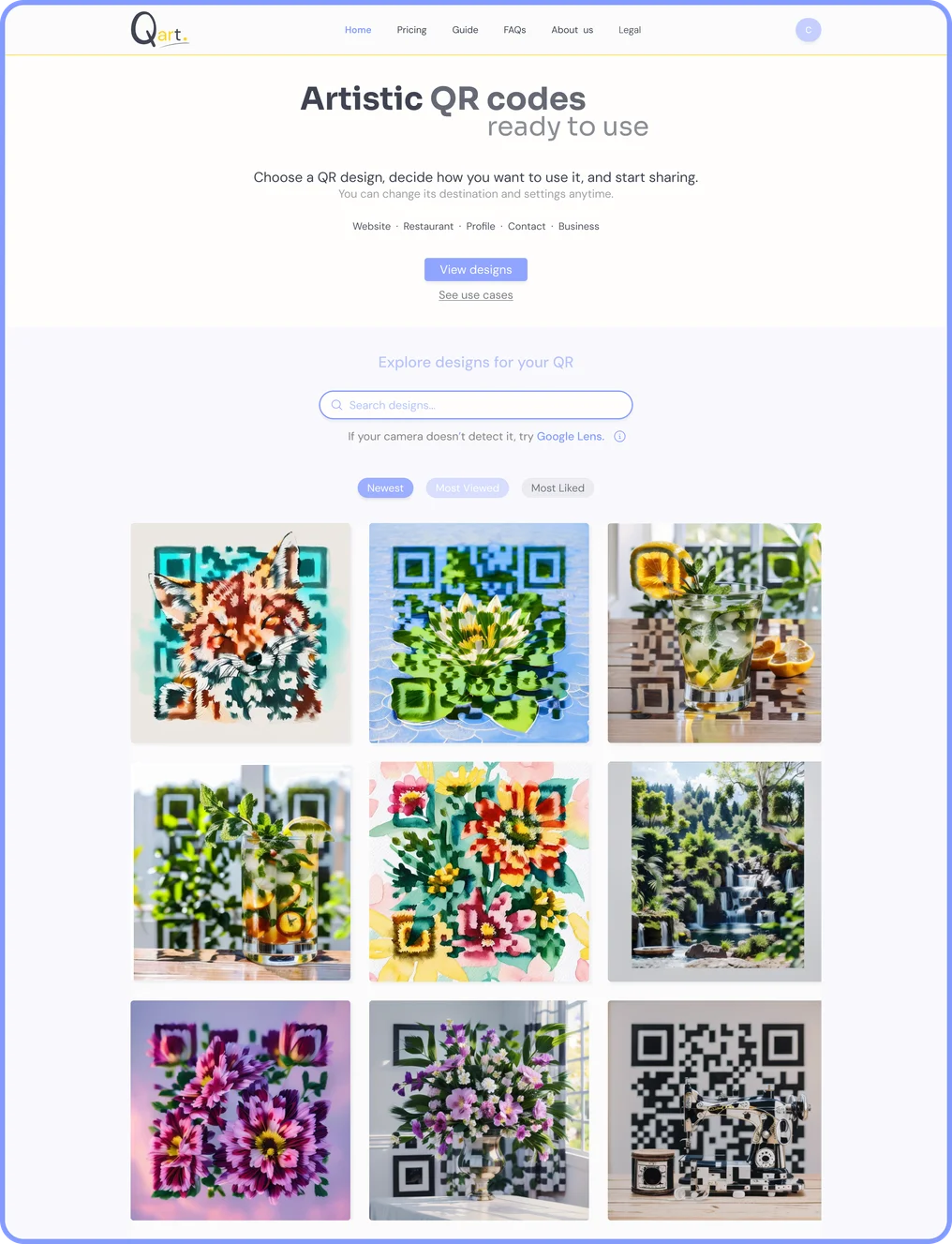
You don’t need an account to browse QR designs, see how each one works, and decide which one fits your project best.
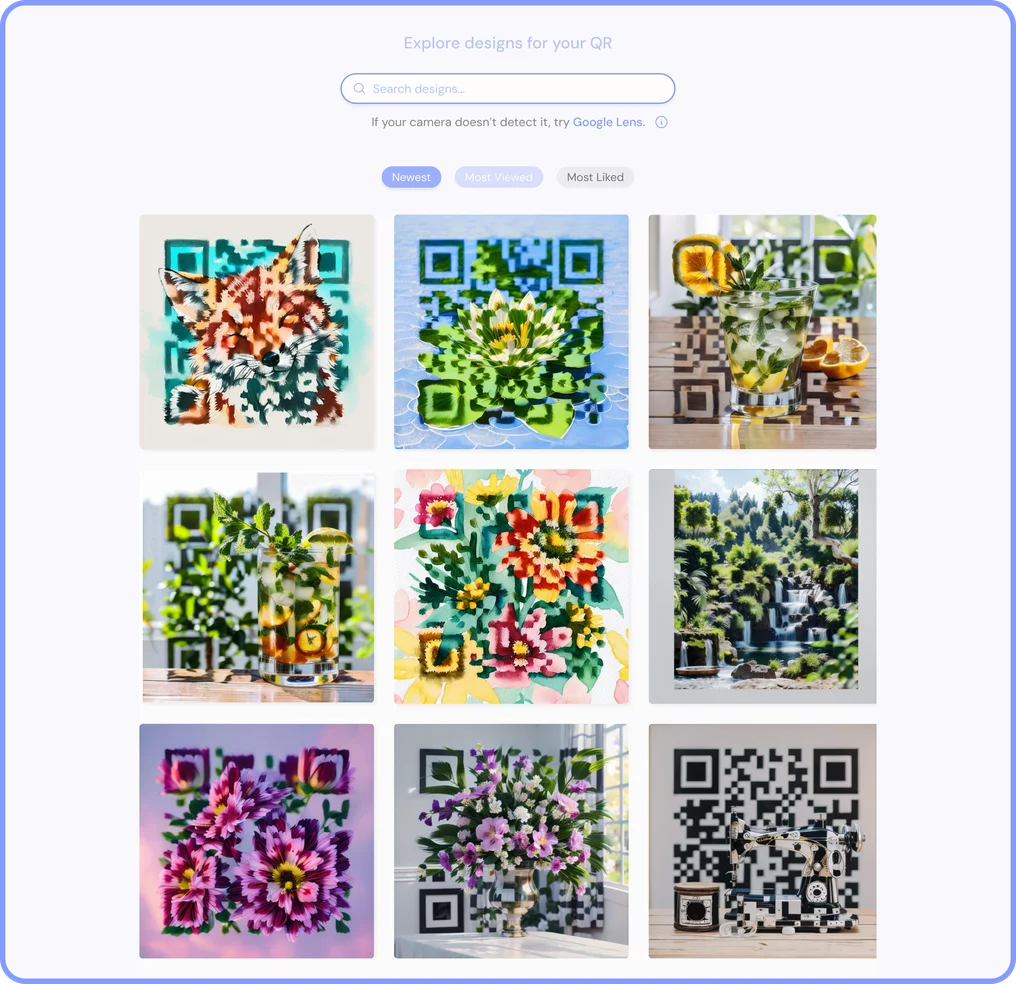
1. Discover QR designs
From “Home”, view the collection of artistic QRs and pick the one that best fits your style, brand, or idea.
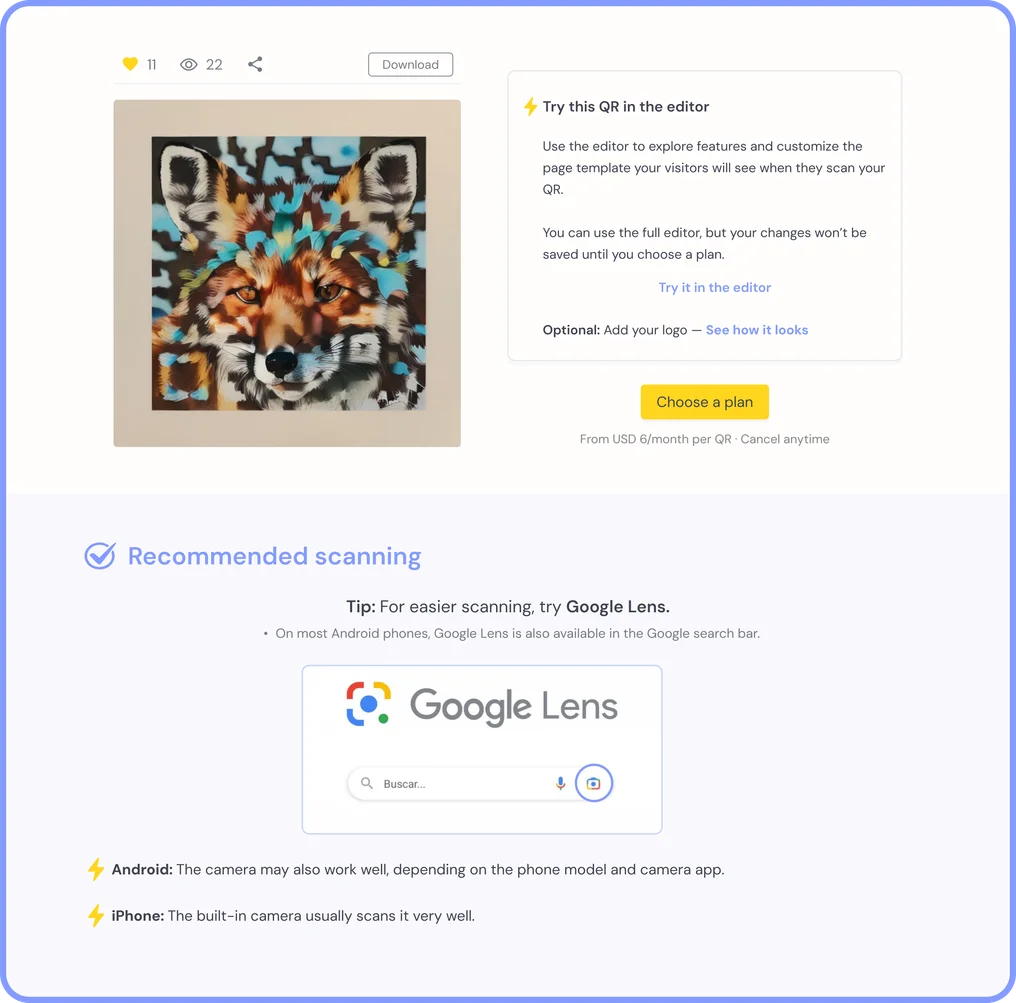
2. See how it works
Open each QR’s page, use the editor, and preview how the experience could look once it’s scanned.
3. Activate your QR
When you’re ready, create your account, choose a plan, and activate it from the page of the QR you selected.
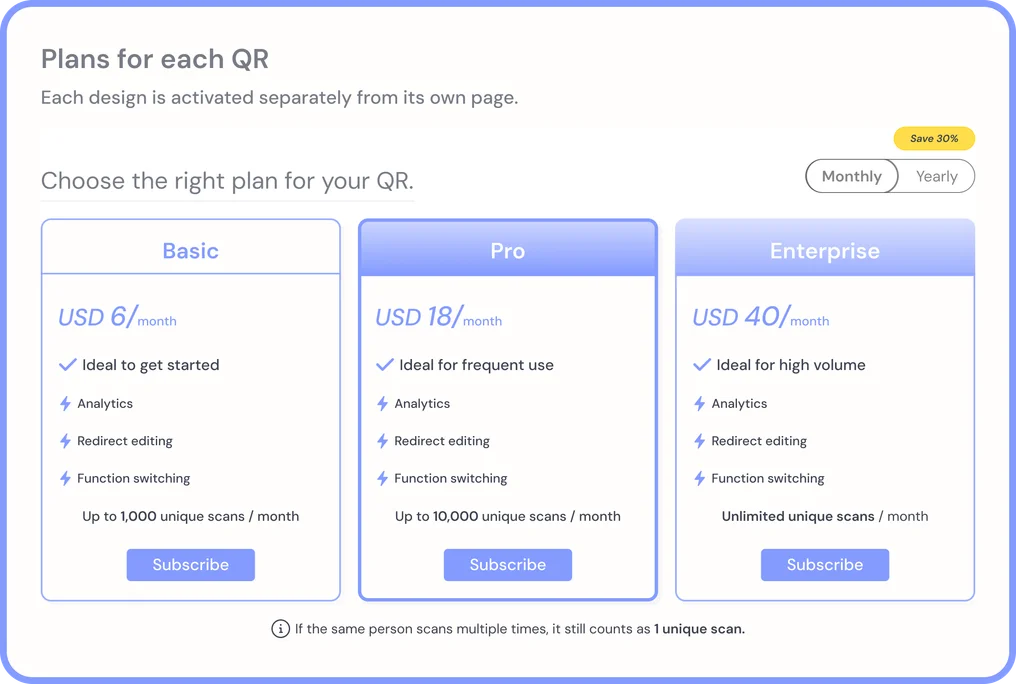
Define how your QR will work
Once activated, choose the type of experience you want to create and fill in the details.
Preview it before activation
Use the editor to see how your selected experience could look and work.
Your changes won’t be saved until that QR has an active plan.







Final details for your QR
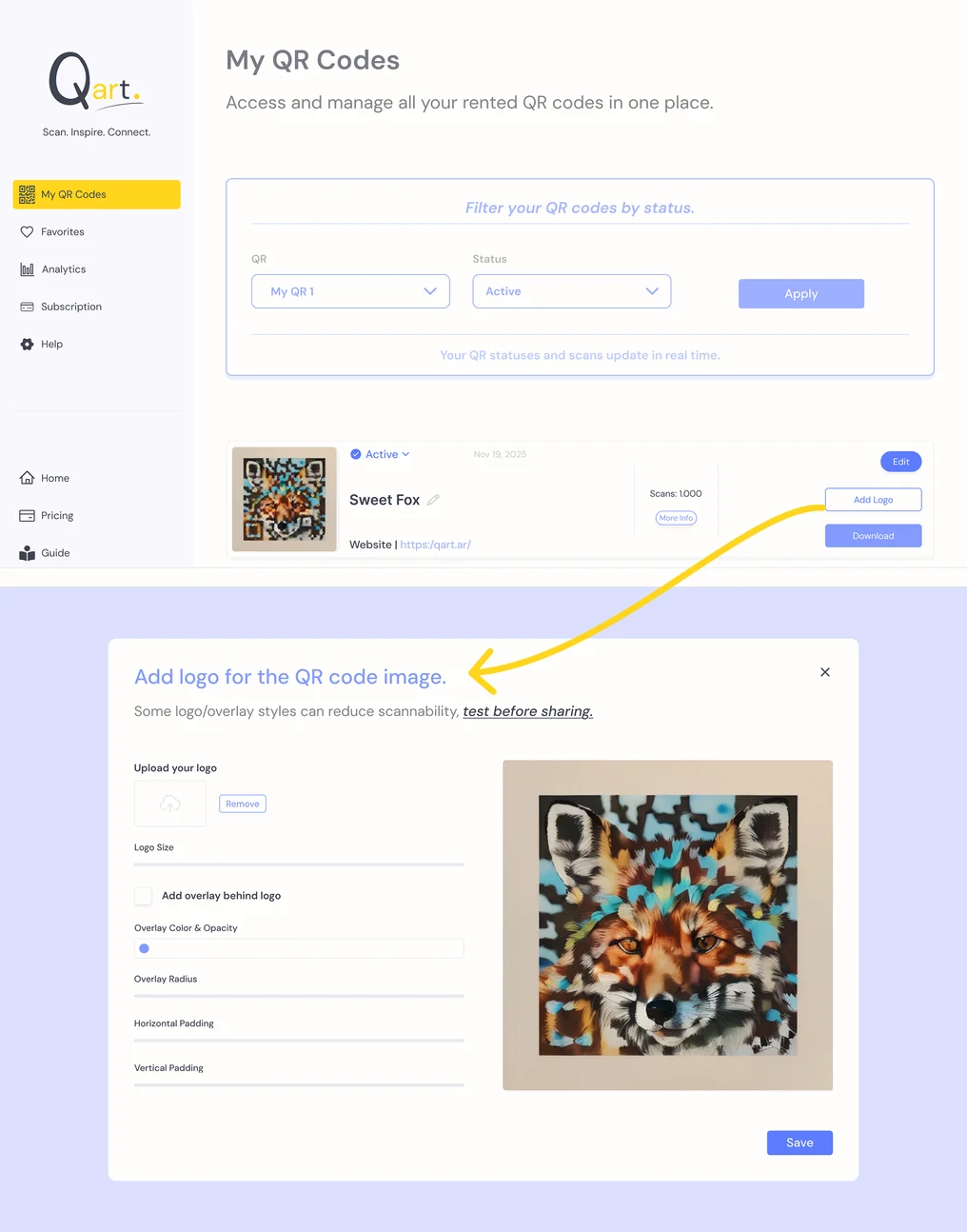
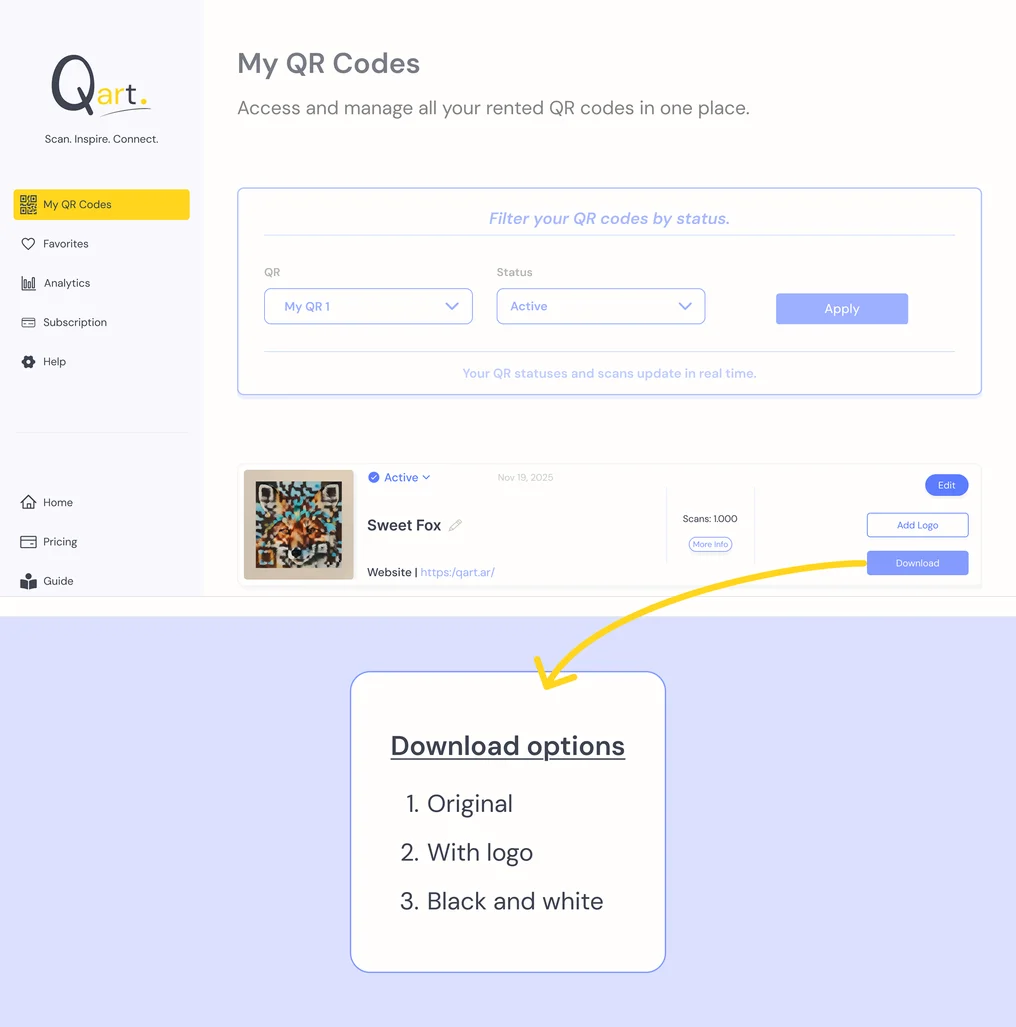
From “My QR Codes”, you can add your logo and choose the download version.
Add your logo to your QR
Download versions
How favorites are organized
Save the designs you like and filter them by status.
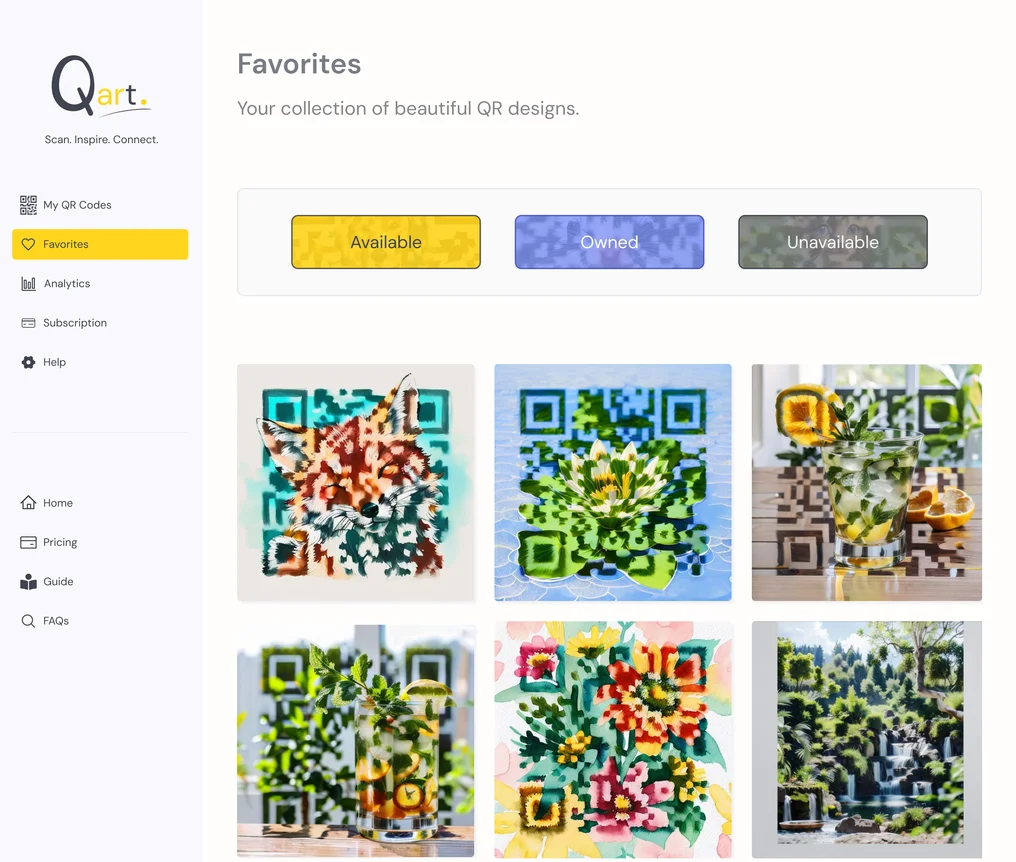
How favorites work
Keep track of the QRs you want to compare or revisit later.
1. Available
QRs ready to choose.
2. Your QRs
Designs linked to your account with an active plan.
3. Unavailable
QRs that currently belong to someone else.
Understand your QR’s performance
See your QR activity and track performance in one place.
How to read your metrics
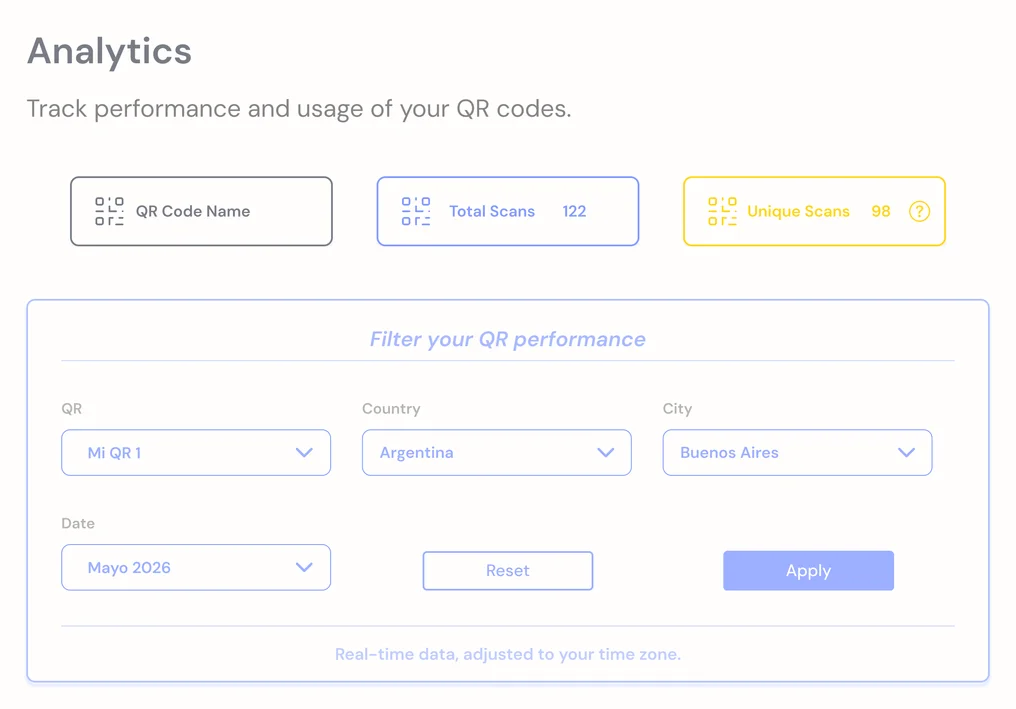
Unique scans count each person or device once.
Total scans include every scan, including repeat scans.
A closer look at your QR activity
Use filters to explore your QR activity by date and location.
1. Filters
Choose a QR, date, country, or city to focus on the data you want to review.
2. Chart
Track how scans change over the selected period.
3. Tables
See which countries and cities your activity comes from.
Manage your QR subscription
View your plan status, payment method, and included scans for each billing period.
What each status means
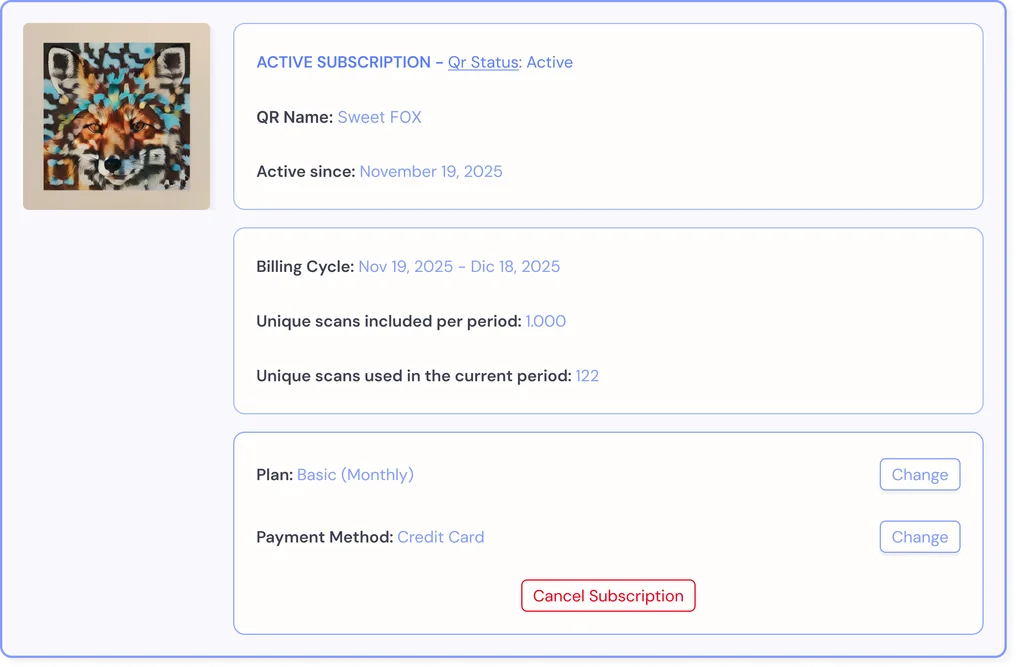
Check your subscription status
Each QR card gives you the key details you need to track its status and manage it with ease.
1. Plan status
See if your subscription is active, requires payment, or has been canceled.
2. Billing period and scans
Review the current period, included scans, and how many have been used.
3. Quick actions
Change your plan, update your payment method, or manage your subscription in one place.
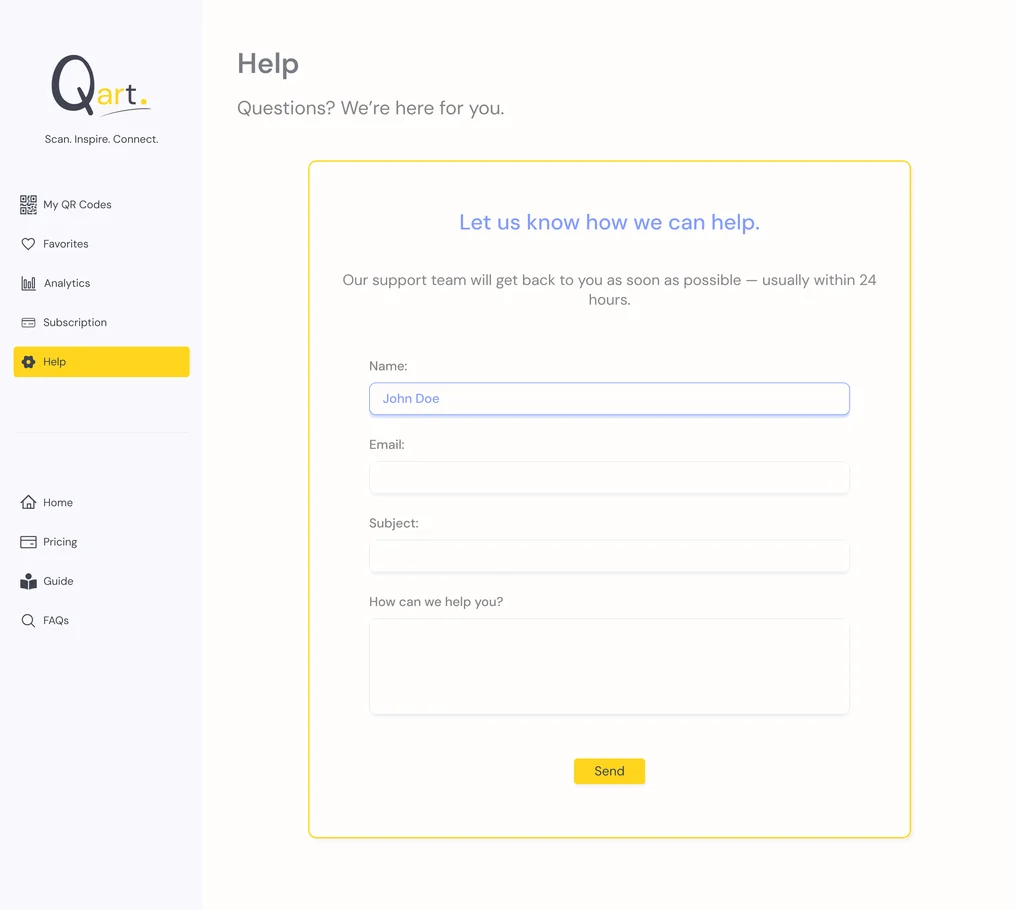
We’re here to help
From your account, you can reach out for support whenever you need it.
Send us your question and we’ll reply as soon as we can.